

Learn how to Import and Export digitised mapping data with myForest
Guidance under Construction
Digitised mapping data is in increasing demand for a wide variety of uses. Land management, funding applications, recreation, biodiversity monitoring, wildlife management, development and planning are just a few examples.
myForest's Export Mapping feature allows you to download your digital mapping data in a variety of standard formats, for your own use or for sharing with third parties.
Compared to more traditional methods, sharing your mapping in this way maintains accuracy at any scale.
To learn more about coordinate reference systems, geographic projections and geospatial file formats in myForest, refer to Coordinate Reference Systems, Mapping Projections and Geospatial File Formats
SPECIAL FEATURE
In conjunction with Defra, users in England with an SBI (Single Business Identifier) can download land parcel boundaries directly into myForest and convert them into Mapping Components, saving time and ensuring mapping accuracy.
RPA Land Parcels ("Land Parcels") are digitised field boundaries for all land that is registered with the Rural Payments Agency (RPA) in England.
Land parcels are essential to access government funding for woodland creation and management. They also make a great starting point for mapping in myForest, ensuring consistency and accuracy.
The process of adding Land Parcels into myForest is quick and easy. All that is needed is the Single Business Identifier (SBI) for the property.
There are two levels of Land Parcel functionality in myForest:
Users with Free Plans can import Land Parcels as a data layer, but cannot interact further with them.
Paid Plan users can convert Land Parcels into Mapping Components, allowing full flexibility and inclusion in output maps.
Importing Land Parcels (Free and Paid Plans)
Converting to Mapping Components (Paid Plans only)
To get a head start with your woodland creation and management in myForest, you can import geospatial files. As well as saving time, importing mapping can be a great way to ensure mapping consistency and accuracy.
When importing, you should bear in mind the following limitations:
The standard global latitude / longitude coordinate system is referred to in Geographical Information Systems (GIS) as WGS84. Points are referenced relative to the line of zero latitude (the equator) and an arbitrary line of zero longitude (the Greenwich meridian). For example, in WGS84, all points on the GB mainland lie between 50.0 and 58.7 degrees north of the equator, and between 6.2 degrees west and 1.8 degrees east of Greenwich. WGS84 is unprojected, that is, it accurately represents the position of any point on the earth’s surface (albeit a surface that has been smoothed out so there are no dips and bumps). This is great if you are navigating with a GPS, because you are actually out there on a 3D surface. However, because maps are flat, they get increasingly distorted and therefore inaccurate the further they are from the equator.
Other Coordinate Reference Systems (CRS) use different projections to “flatten” the globe. Projections define how the points on a flat, 2-dimensional map are spread across a curved, 3-dimensional plane. The images below demonstrate how different global projections do this. In effect, they overlay a square grid made up of straight lines on a rounded surface and relate the location of all points to that grid with x and y coordinates. Inevitably, because the lines of longitude are not parallel but converge the closer you get to the poles, this results in inaccuracies.
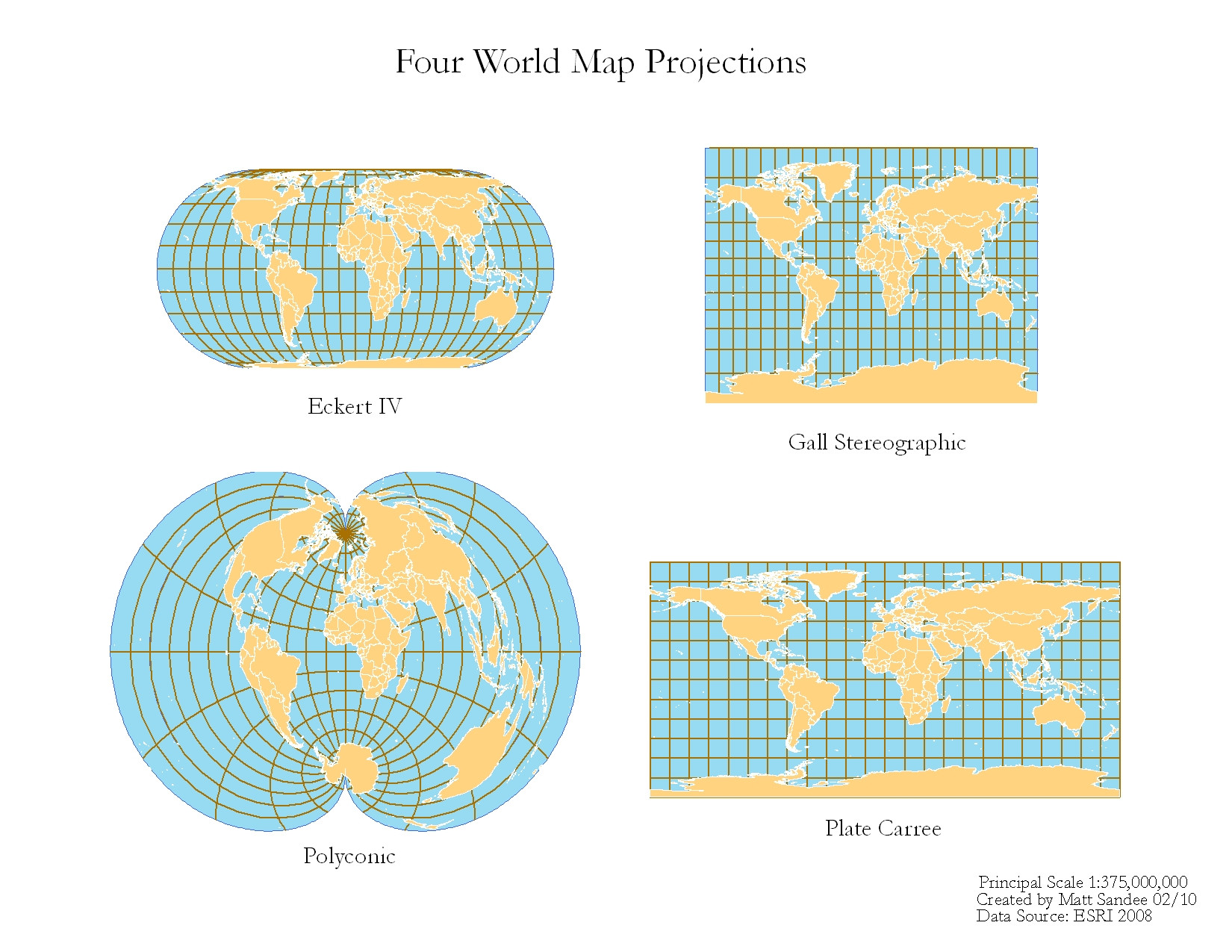
In order to maintain accuracy when exporting or importing digitised mapping data with myForest, it is important to use the correct projection. Essentially, if the data conforms to one CRS, and you import it into a map conforming to another CRS, your data points will end up in the “wrong” place.
A number of different standards exist for storing digital mapping data. KML is the standard used by, among others, Google Earth. Shapefiles are used by all ESRI products including ArcGIS and are used by many major organisations. A single Shapefile can only contain one type of geometry - points, lines or polygons - so their use can be a little complicated. The GeoJSON format is another universal standard, which is more straightforward to use as a single file can contain all three types of geometry.
myForest can identify standard Coordinate Reference Systems and will place data points - and the lines and polygons that they make up - on a base map correctly using the Google Maps projection called EPSG:3857. So as long as the file you are importing contains valid projection information - and doesn’t contain invalid geometries and, in the case of Shapefiles, multi-polygons - it will work. myForest can import KML, GeoJSON and Shapefiles. GeoJSON files use coordinates in the form longitude - latitude, unlike Google Maps which uses the standard form latitude - longitude, however myForest will correct this automatically.
You can select from three different Coordinate Reference Systems when exporting mapping data from myForest. EPSG:4326 / WGS84 (unprojected), EPSG:3857 (Web Mercator projection) or EPSG:27700 (British National Grid). Bear in mind that EPSG:27700 is only accurate for use in Great Britain. You can also export data in KML, GeoJSON or Shapefile format. The choice of projection and file format will be determined by how and where the data is going to be used (see below for further information).
For more information on Coordinate Reference Systems and Mapping Projections refer to Geographic Coordinate Systems 101.
For more information on choosing a Coordinate Reference System for use in the UK refer to UK Geospatial Data Standards.
Guidance under Construction
For our blog on downloading and importing RP&S land parcels visit Importing RP&S Parcel Boundaries
Guidance under Construction


View details on the website of the Charity Commission for England & Wales

View details on the website of the Scottish Charity Regulator.

View details on the website of the Fundraising Regulator.

Certificate No. IASME-CE-011514
Sylva Foundation is a charity registered in England and Wales 1128516 and in Scotland SC041892. A non-profit making company limited by guarantee,
registered in England No.06589157.
Copyright © Sylva Foundation. All rights reserved.
View details on the website of the Charity Commission for England & Wales
View details on the website of the Scottish Charity Regulator.
View details on the website of the Fundraising Regulator.
Certificate No. IASME-CE-011514
Sylva Foundation, Sylva Wood Centre, Little Wittenham Road, Long Wittenham, Oxfordshire, OX14
4QT
01865 408018 |
Contact Us
| Legal Documents |
Cookies